Adobe Acrobat Reader: Edit PDF
- 4.5
- Rating
- 500.00M
- Installs
- Free
- Price

 Analysis by App-foxy
I have used Adobe Acrobat Reader as my main way to open, read, mark up, and manage PDF files on a phone, and it remains one of the most dependable productivity apps in this space. It is free to install, aimed at everyone, and made by Adobe, the company most people already associate with PDF documents. Its enormous reach is reflected in more than 500 million installs, while an average rating of 4.5 from roughly 7.5 million ratings suggests that it works well for a very broad audience.
That popularity does not mean it is perfect for every task. I find it especially useful when a PDF arrives by email, messaging app, cloud storage, or a work portal and I need to read or sign it without opening a computer. At the same time, people expecting a complete desktop publishing tool may find the mobile experience more limited than the name suggests. The free version is capable, but some advanced actions lead toward in-app purchases ranging from $1.99 to $299.99 per item.
How Acrobat Reader feels today
The first thing I notice is that Acrobat Reader is built around the PDF rather than around a particular source. A document can come from a downloaded file, an attachment, or another app, and the reader usually feels familiar once the file is open. That matters because PDFs are often used at inconvenient moments: checking a travel document, reviewing a contract in a waiting room, confirming a school form, or reading an instruction manual while away from a desk.
You May Also Like

 AccuWeather: Weather Radar
AccuWeather Review: A Quick, Clear Forecast for Everyday Decisions
For everyday plans, the best forecast is the one you can understand quickly. AccuWeather makes rain timing, radar, and local conditions easy to act on, with a few trade-offs.

 Hill Climb Racing
Why Hill Climb Racing Still Turns Crashes Into One More Run
A tiny car, a bumpy hill and one more upgrade: Hill Climb Racing keeps resurfacing because its simple chaos makes every near-miss feel personal.

 AliExpress - Shopping App
AliExpress Makes Global Shopping Feel Personal, but Shoppers Bear the Risk
AliExpress turns a global marketplace into a pocket-sized discovery engine. Its reach is useful, its shopping loop compelling, and its trade-offs easy to miss.

 Lords Mobile: Kingdom Wars
Lords Mobile Is a Kingdom-Building Routine, Not a Quick Match
A case-by-case verdict on the building, battles, device demands, and social commitments that make Lords Mobile rewarding for some players and exhausting for others.

 PDF Scanner app - TapScanner
TapScanner Makes Paperwork Easier to Capture, Check, and Share
TapScanner makes scanning with a phone feel less like a rescue operation and more like a dependable step in getting work done. Its capture tools are useful, though not flawless.

 Block Blast!
 Shows How Much a Puzzle Game Can Leave Out
A quiet grid game shows why puzzle players increasingly value instant clarity, repeatable skill and low-pressure play—and where the genre still needs to catch up.
More From Our News Desk
View All News


The reading experience is the strongest part of the app. Pages are easy to move through, text remains recognizable across different document layouts, and the interface does not make basic reading feel like an editing project. I can zoom into a small clause, return to the page, and continue without losing the context of the document. For long files, that simple reliability is more valuable than a collection of flashy extras.
Acrobat Reader also fits naturally into a mobile workflow because PDFs are rarely created in isolation. I may receive one in an email, open it in Acrobat, add a note, and send it back through the original communication app. That handoff is more practical than saving every file to a special folder first. The app is at its best when it acts as a dependable middle step between receiving a document and deciding what needs to happen next.
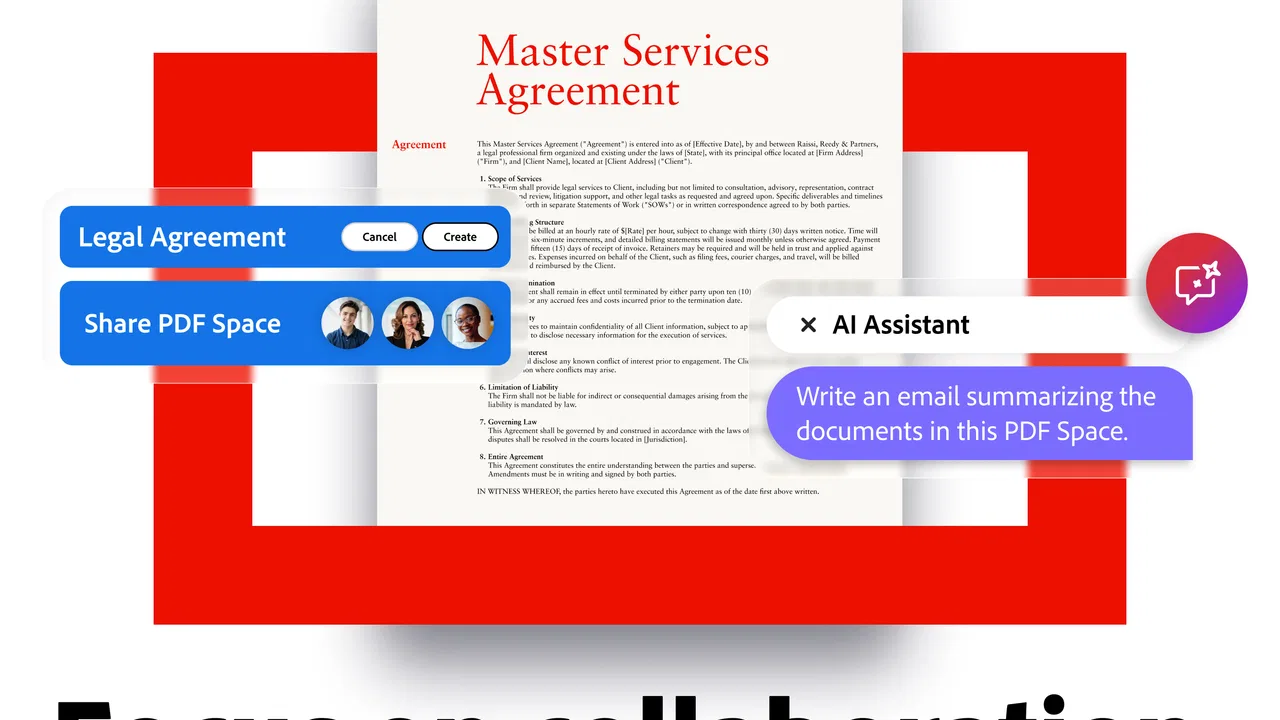
Adobe describes the product as having grown from the earliest days of PDF into an AI-powered hub. In practical terms, I would treat that as a direction rather than a reason to install it blindly. The core experience is still the familiar document reader, while newer capabilities are intended to make PDFs easier to understand and work with. The important question for me is whether those additions genuinely shorten a task rather than simply add another menu.
Reading, searching, and checking details
For ordinary reading, I prefer Acrobat Reader over opening a PDF inside a browser or a basic file manager. Browser viewers are convenient, but they can feel inconsistent from one device to another, especially when I need to return to a document later. Acrobat gives the file a dedicated home and makes it easier to treat a PDF as something I am actively reviewing rather than something I opened accidentally.
Search is particularly useful in practical situations. If I receive a long policy document, invoice bundle, or user guide, I can search for a name, section, or phrase instead of swiping through every page. This is not a dramatic feature, but it changes how useful a phone becomes for document work. I recommend searching before reading line by line, then using the surrounding pages to check the context.
There is one important limitation: a PDF is not always a clean text document. Scanned pages, unusual fonts, columns, and forms can behave differently from ordinary digital text. When a search does not find something I can clearly see, I do not assume the information is missing. I check whether the page is an image or whether the document uses a layout that needs closer inspection. That small habit prevents false confidence.
Annotations that make a phone genuinely useful
Marking up a PDF is where the app becomes more than a passive reader. I use highlights for passages I need to revisit, comments when I want to record a question, and drawing tools when a document needs a quick visual indication. These options are useful for study notes, review copies, and work documents that do not require a full rewrite.
My practical tip is to keep annotations purposeful. On a small screen, excessive highlighting quickly turns a document into a bright wall of color. I prefer one color for important wording and comments for anything that needs an explanation. This makes the same file easier to review later and reduces the temptation to edit the original text when a simple note is enough.
Annotations also work well in a realistic everyday scenario. Suppose a landlord sends a rental agreement while I am away from my computer. I can open it, search for a section about deposits, highlight the relevant wording, add a comment beside a point I want clarified, and send the marked copy back. I would not use the phone for a complete legal review, but I would absolutely use it to prepare questions before a proper discussion.
Forms, signatures, and the boundary of mobile editing
Many people install Acrobat Reader because they need to sign a PDF. For straightforward forms, the mobile approach is convenient: I can place a signature or fill in fields without printing the document. This is one of the clearest reasons to keep the app available, especially when a deadline arrives outside office hours.
Still, I would not assume that every PDF form will behave perfectly. Some documents are designed with interactive fields, while others are essentially scanned images. A field that looks obvious to a person may not be recognized as a fillable area. When that happens, I treat the document as a visual page and place text or a signature carefully rather than expecting the form to guide me.
Signing on a phone is also a matter of confidence and control. I check the document from the first page to the last before adding my signature, then review the final result after saving. A signature tool makes placement easy, but it does not tell me whether the surrounding terms are correct. The app can simplify the mechanical step; it cannot replace reading the agreement.
For repeated business paperwork, I would compare the cost of advanced features with the number of documents involved. The free download is attractive for occasional reading and simple work, but in-app purchases can become substantial, with individual items listed from $1.99 up to $299.99. That range makes it important to test the basic workflow first and only pay when a specific recurring need justifies it.
What has changed and what that means for existing users
I’d use this section to focus on what the shift toward a broader PDF workspace changes in practice: existing users can handle more of a document task in one place, while the familiar reading workflow remains a useful starting point. The key is to distinguish convenience from necessity; a new tool only earns a place in my routine when it saves a step without making a simple check feel complicated.
From a reader to a broader document workspace
Adobe Acrobat Reader was released on May 24, 2010, and its long life explains why many people encounter it as the default name for PDFs. I see its evolution as a gradual shift from opening documents toward helping users complete more of the surrounding work: reviewing, commenting, signing, organizing, and using newer assistance aimed at understanding content.
That evolution is useful for existing users because it reduces the need to move between several unrelated apps. A person who once used one app to read, another to annotate, and a third to sign may be able to keep more of the process together. The trade-off is a busier product. A reader who only wants to open a file may encounter options that are irrelevant to that simple goal.
The newer AI-oriented direction deserves a measured view. I find assistance most valuable when it helps me locate the important part of a long document or formulate a starting point for review. I would not treat generated explanations as a replacement for checking the original wording, especially in financial, legal, medical, or employment documents. The original PDF remains the authority, and any summary should be checked against it.
This distinction is important for people upgrading from an older, simpler version of the app. The basic reading habit still transfers well, but the surrounding interface may encourage more actions than before. My advice is to keep a clear personal workflow: open, search, inspect, annotate if needed, and only then consider extra tools. That prevents the app from turning a quick document check into an unnecessary tour of every available feature.
How the changes affect storage and organization habits
As Acrobat Reader grows into a broader PDF workspace, organization becomes more important. I try to name files clearly before sending them onward and avoid keeping several nearly identical copies with vague names. This is especially helpful when I have an original, a marked-up version, and a signed version of the same document.
A useful habit is to preserve the untouched original before making annotations or signing. That gives me something to compare against and avoids confusion if another person asks what changed. I also review the saved file immediately rather than assuming the mobile app preserved every mark exactly as intended. This is not unique to Acrobat, but its range of document actions makes version awareness especially valuable.
For an existing user, the biggest benefit is convenience rather than a complete replacement for desktop software. I can handle short, urgent tasks from a phone, but I still prefer a larger screen for comparing pages, correcting substantial content, or reviewing a complicated document with several contributors. Acrobat Reader extends my workflow; it does not eliminate the need for a computer in every situation.
Where the app still creates friction
The main friction is the difference between “free to install” and “free for every advanced task.” Basic reading is approachable, but the path to more powerful editing or document processing may involve paid options. That is reasonable for a professional tool, yet the interface can make it easy to discover a feature first and understand its cost second. I recommend deciding what you need before starting a document-heavy project.
Another issue is screen size. A phone is excellent for checking a page, signing a simple form, or leaving a short note. It is less comfortable for precise editing across many pages. Finger placement can be awkward, and a small display makes it harder to judge alignment. If accuracy matters more than speed, I would move the task to a tablet or computer rather than forcing the mobile workflow.
Acrobat Reader is also not the best choice for people whose primary goal is creating polished documents from scratch. A word processor is better for writing, restructuring, and formatting content before exporting it as a PDF. A dedicated scanning app may be more convenient for quickly capturing paper pages. Acrobat makes sense when the PDF is already the central object and I need to inspect or act on it.
Who should use it and who should look elsewhere
I recommend it to students who receive lecture notes and assignment forms, workers who review documents away from a desk, families handling official paperwork, and anyone who regularly needs to sign or annotate PDFs. Its Everyone content rating also makes it suitable for a wide general audience, though the suitability of a particular document naturally depends on the document itself rather than the app.
I would suggest a different tool to someone who only reads an occasional PDF and wants the smallest possible app experience. A built-in browser viewer may be enough for that person. I would also point professional designers and heavy document editors toward desktop software when they need exact layout control, complex revisions, or side-by-side comparison across many pages.
Compared with browser viewers, Acrobat feels more deliberate and better suited to repeated document work. Compared with lightweight PDF readers, it offers a wider path from reading into annotation and signing. Compared with full desktop editors, it is more convenient but less comfortable for large, precise projects. That middle position is its real strength: it handles serious quick tasks without pretending a phone is a full office.
What I would watch before relying on it long term
I would pay attention to how future updates balance the traditional reader with newer assistance. The best direction would keep opening and reading immediate while making advanced tools easier to understand. If the app continues adding capabilities, clear separation between everyday actions and paid or specialized functions will matter even more.
I would also watch how well the newer document-help features support careful verification. For me, usefulness is not just getting a quick explanation; it is being able to trace that explanation back to the exact passage in the PDF. That kind of transparency would make the AI-powered direction more valuable for real work rather than merely impressive in a demonstration.
After using it across ordinary document tasks, my view is straightforward: Adobe Acrobat Reader is strongest as a dependable mobile PDF workbench, not as a complete replacement for desktop editing software. The free entry point, familiar reading experience, annotation tools, and signing workflow make it an easy recommendation for most people who handle PDFs regularly.
I would install it for the occasional form, study document, or work attachment, then decide whether advanced purchases are worthwhile based on actual use rather than assumptions. Keep the original file, check saved signatures and annotations, and verify any automated explanation against the source. With those habits, Acrobat Reader becomes a practical part of everyday productivity instead of an app that simply sits on the phone waiting for an emergency.
FAQs for Adobe Acrobat Reader: Edit PDF
01What features does Adobe Acrobat Reader offer for editing PDFs?
Adobe Acrobat Reader allows users to perform various editing tasks such as adding or removing text, inserting images, and annotating PDFs. It also supports highlighting, underlining, and adding sticky notes for comments. Users can fill and sign forms, and with a premium subscription, they can convert PDFs to other formats like Word or Excel.
02Is Adobe Acrobat Reader free to use, or does it require a subscription?
Adobe Acrobat Reader is available for free and offers basic features like viewing, annotating, and filling forms. However, advanced functionalities such as editing text, converting PDFs, and organizing pages require a subscription to Adobe Acrobat Pro DC, which can be purchased on a monthly or yearly basis.
03How does Adobe Acrobat Reader handle document security and privacy?
Adobe Acrobat Reader provides features to enhance document security, including password protection and permissions settings to restrict copying, editing, or printing. Users can also apply digital signatures for authentication. Adobe adheres to strict privacy standards, ensuring your data remains secure and compliant with major regulations.
04What are the system requirements for downloading Adobe Acrobat Reader on mobile devices?
For Android devices, Adobe Acrobat Reader requires Android 5.0 or later, and for iOS, it needs iOS 13.0 or later. Both platforms recommend having adequate storage space available for optimal performance. The app is optimized for both smartphones and tablets, ensuring a seamless user experience across devices.
05Can Adobe Acrobat Reader integrate with cloud storage services?
Yes, Adobe Acrobat Reader integrates seamlessly with popular cloud storage services such as Adobe Document Cloud, Google Drive, Dropbox, and OneDrive. This allows users to access and manage their PDF documents across different devices easily, ensuring their files are always up-to-date and accessible from anywhere.
Pros
- User-friendly interface for all levels.
- Comprehensive PDF editing tools available.
- Seamless cloud integration for easy access.
- Supports multiple file formats efficiently.
- Regular updates enhance functionality.
Cons
- Some features require a premium subscription.
- Editing complex PDFs can be slow.
- Occasional syncing issues reported.
- Limited free storage on the cloud.
- Heavy on device resources.

Adobe Acrobat Reader: Edit PDF
Gallery